How to Set Up Digital Signage
Setting up a single digital signage screen is a job for one afternoon, not a project. The order matters more than the budget: decide what the screen is for, then pick hardware that suits the room, then get content on it and scheduled so it does not need a human to stay current. This guide covers a first screen end to end, and the decisions that make the tenth screen easy instead of painful.
Before You Start
- A display — a commercial panel, or a TV you already own for a first screen
- A media player, unless the display has a signage platform built in
- A power point and network access (wired ethernet preferred over Wi-Fi)
- A digital signage account — a SPARC trial works for this
- Content: an image, a short video, or a template you can edit
- A wall mount or stand, and someone qualified for any fixed electrical work
Decide what the screen is for
Write down the one thing a viewer should do differently after seeing this screen: order the promoted item, find level 3, take a ticket, know today's specials. This decides the orientation, the position, and the content format, and it is the only way to judge later whether the screen is working. A screen without a defined job ends up showing a rotating mix of everything and measuring nothing.
- — Stand where the viewer will stand and time how long they can see the screen
- — Under five seconds of dwell means one message and six words, not a menu
- — Portrait suits queues and entrances; landscape suits menus and dashboards
Choose the display
For a screen running a few hours a day in controlled light, a consumer TV you already own is fine to start with. For all-day trading hours, bright rooms, shop windows, or portrait mounting, use a commercial display: they are rated for 16-24 hours a day, are brighter, can be locked so nobody changes the input, and power themselves back on after an outage. Match brightness to the room, not to the spec sheet.
- — Near a window or facing daylight, brightness matters more than resolution
- — Check the panel is rated for portrait before mounting it that way
- — Commercial warranties cover business use; most consumer warranties do not
Choose and connect the media player
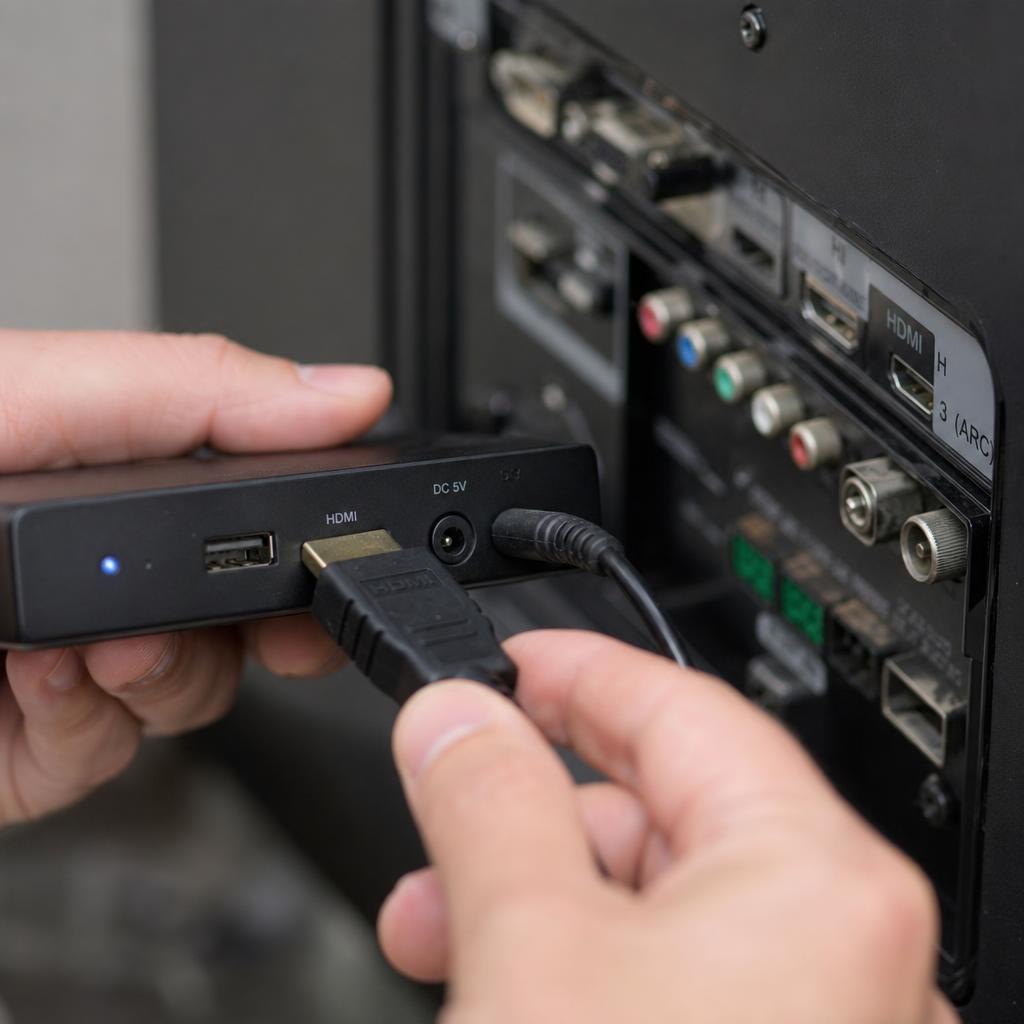
The player is the small computer that stores and plays your content. An Android player is the cheapest route and suits most single screens. A Windows player suits sites with corporate IT standards or complex layouts. Some commercial displays have a player built in, which avoids an extra box and power point. Connect the player by HDMI, give it power, and put it on wired ethernet if there is a port within reach.
- — Wi-Fi is the most common cause of screens that drop out intermittently
- — Label the player and record where it is — you will thank yourself at screen ten
- — Leave the player accessible; taping it behind a wall-mounted panel makes swaps painful
Install the software and pair the screen
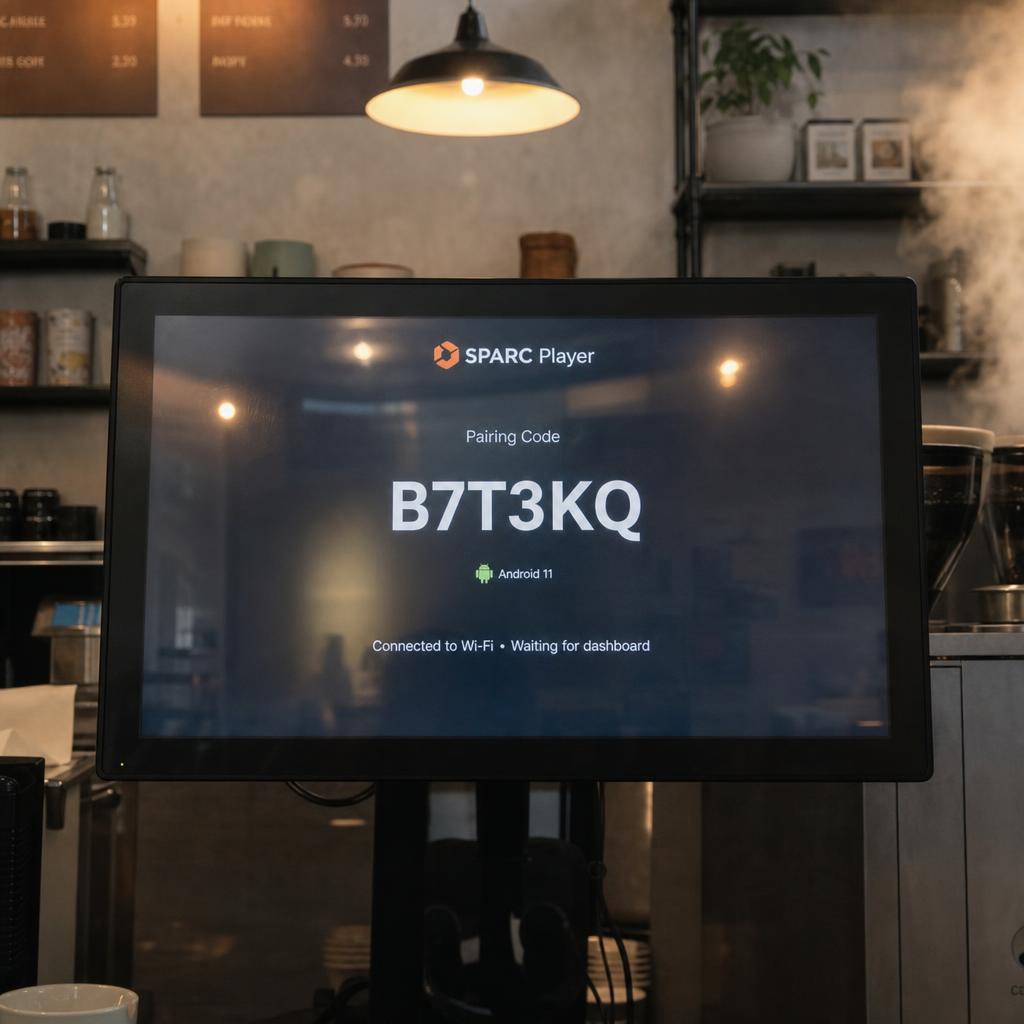
Install the signage app on the player and open it. It will show a pairing code on the screen. Log in to the platform in a browser, add a new screen, and enter that code. The screen now belongs to your account and will accept content. Name it for where it is, not what it is: 'Collins St window' beats 'Screen 1' the first time someone else has to publish to it.
- — Set the screen's location and group now, before you have many screens
- — Set the timezone on the player so schedules fire at local time
- — Confirm the screen shows as online in the dashboard before leaving the site
Build the first playlist
Upload your content and build a playlist: the items, the order, and how long each one holds. Keep the first loop short — three to five items is plenty. Set durations against dwell time: five to eight seconds per frame for passing traffic, longer where people wait. Use a template if your platform has one, so the layout is consistent when someone else adds the next item.
- — Check legibility from where the customer actually stands, not at your desk
- — One idea per frame; if it needs a second sentence, make it two frames
- — Put an end date on anything promotional as you upload it
Schedule it so it maintains itself
Assign the playlist to the screen with a schedule rather than leaving it running indefinitely. Use dayparting for anything that differs between breakfast, lunch, dinner, or after-hours, and set start and end dates on campaigns so they remove themselves. Schedule the screen to power down overnight where it is not needed, which extends panel life and reduces the burn-in risk on static layouts.
- — Content with no end date is the single biggest cause of stale screens
- — Set the recurring content once; only campaigns should need attention
- — Give a named person ownership of each screen group, not each screen
Verify, then plan for screen two
Confirm the screen is playing the right content at the right time, that it shows as online in the dashboard, and that it recovers after you pull the power and plug it back in. Then write down the three settings you chose — player type, mount orientation, naming convention — because repeating them is what makes the second and tenth screens quick. Add permissions before you add people: local staff on their own screens, head office on templates.
- — Test a power-cut recovery before you rely on the screen
- — Take a screenshot from the platform to confirm what is actually on screen
- — Review content monthly in the calendar, not when someone notices it is old
A first screen is mostly decisions, not installation: what the screen is for, whether the room needs a commercial panel, and whether the content can maintain itself once you walk away. Get those right on screen one and the rest of the network is repetition. If you are weighing platforms before you commit, the buyer's comparison of digital signage CMS platforms in Australia covers what separates them.
How to Set Up Digital Signage: Troubleshooting
The screen shows the pairing code but never comes online
The player has no working internet connection. Check the ethernet cable or Wi-Fi credentials, and confirm the network does not block outbound access. Guest networks with captive portals will not work for signage players.
Content plays but updates never arrive
The player is online but cannot download. Check available storage on the player and whether a firewall is blocking content delivery. Large video files on a slow connection can also take longer than expected to land.
The screen is black after a power cut
Most consumer TVs need a human with a remote to power back on. Enable the TV's auto power-on setting if it has one, or switch to a commercial display, which resumes by itself.
Someone changed the input and the screen is showing free-to-air
Lock the input if the display supports it, set the default input to the player, and remove the remote from the area. Commercial displays let you lock settings centrally.
Content looks washed out during the day
The panel is not bright enough for the ambient light. Move it out of direct daylight, increase brightness, or replace it with a high-brightness commercial display for window positions.
Text is unreadable from where customers stand
Content was designed at desk distance. Increase type size, raise contrast, and cut the words per frame. Test by standing at the actual viewing distance.
Related Digital Signage Guides
Ready to set this up in SPARC?
Start a free trial and follow along on your own screens — no credit card required.