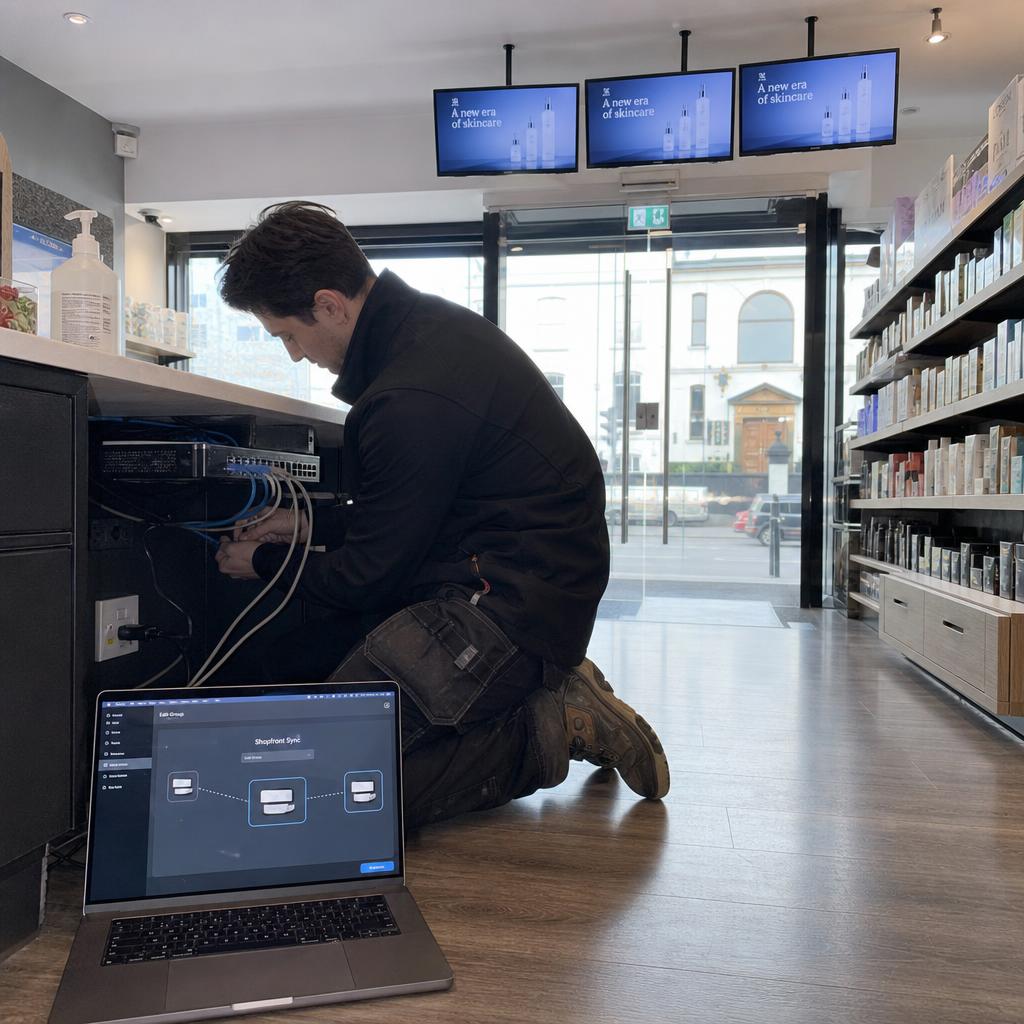
What You Need Before You Start
Synchronising video across multiple displays means every screen in a group starts, plays, and loops the same content at the same moment, with no visible lag between screens. You get there by combining a reliable local network, content files prepared to match across every player, and signage software that supports grouped playback.
Before you touch a player or open your CMS, confirm you have:
- A media player or smart display at every screen, running the same signage software.
- A local network every player can reach — Ethernet is strongly preferred over Wi-Fi beyond two or three screens.
- Source video files with matching resolution, frame rate, and duration across the screens you plan to group.
- Admin access to your signage CMS with permission to create player groups.
- A rough map of which screens actually need to sync with each other.
Group only the screens where a viewer could plausibly see two of them at once. If you want the technical background on how software-based sync keeps players aligned, that's covered in Synchronised Playback Software: How It Works.
Choosing a Video Sync Approach for Your Screen Count
| Deployment size | Typical sync approach | Network setup | Who manages it |
|---|---|---|---|
| Small (2-6 screens, one site) | Software sync over local Wi-Fi or wired LAN | Single subnet | One person, ad hoc |
| Mid-size (6-20 screens, one or two sites) | Software sync with a defined group per zone | Wired LAN, dedicated VLAN | One person with a written checklist |
| Larger estate (20+ screens, multiple sites) | Software sync across multiple groups, monitored centrally | Site-to-site VPN, local caching | A small team with a rollout and QA step |
What changes across the table is how much you document, test, and monitor — not the underlying steps. If you're working with LED video walls rather than standalone screens, the wall-specific setup is covered separately in How to Synchronise Multiple LED Video Walls.
Which Approach Fits Your Setup
A handful of screens in one room or shopfront: put all players on the same wired segment, group them once, and test with a short looping video before committing to full content.
Screens across several rooms or floors in one building: group by sightline, not by building.
A multi-site network: you need process, not just steps — document your naming convention, keep one master content library, and stage new content to one site before pushing everywhere.
LED video walls rather than standalone screens: content prep and grouping still apply, but the physical setup (processor configuration, panel mapping) is different enough to be worth reading alongside this guide.
Setting Up the Network Before You Sync Anything
- Use wired Ethernet wherever you can. Wi-Fi works for two or three screens in good conditions, but latency and jitter make tight sync harder to hold as you add screens.
- Confirm every player is on the same local network segment, not routed through a firewall or variable-latency link.
- Check your connection is stable, not just fast. A link that drops for a few seconds each hour causes visible resets.
- Confirm NTP is working on every player. A blocked outbound port can break it silently.
- Reserve a static IP for each player. DHCP changes mid-deployment are a common cause of players dropping out of a sync group.
- Test the network before adding content. Ping each player and confirm CMS access first.
Fix anything that fails here first — content and grouping issues are much easier to diagnose once the network is solid.

Preparing Content So It Actually Syncs
- Match resolution to each screen's native resolution, or the lowest common resolution in the group.
- Match frame rate across every file — mixing 25fps and 30fps sources is a common cause of drift over a long loop.
- Match exact duration, down to the frame — a one-frame difference compounds over a shift.
- Use the same codec across the group where your player supports it.
- Name files consistently so you can tell at a glance what's live where.
- Upload to the whole group at once using your CMS's bulk function.
- Keep a single source library to avoid duration mismatches from different exports.
Once uploaded, check actual playback duration on each player against your source file before building it into a playlist.
Grouping Displays and Configuring Sync in Your CMS
- Create a sync or display group for each set of screens that need to play in step.
- Assign matched content to the group as a single playlist, rather than to each player individually.
- Set a shared start trigger — a scheduled time, a network time signal, or a manual push to the whole group at once.
- Confirm loop behaviour is consistent, not just content duration.
- Check the group's status view and confirm every player shows online and synced before testing.
- Save the group configuration as a reference to compare against later.
Testing Sync Before You Go Live
- Walk the room. Stand where a viewer would and watch a full loop end to end.
- Watch the loop point specifically. Drift is usually most visible at the reset.
- Test past the first loop. A group that looks synced on the first pass can visibly drift by the third or fourth cycle.
- Test under normal network load, not on an empty network.
- Power-cycle one player and confirm it rejoins the sync group correctly.
- Leave it running unattended for a full day before go-live, if your timeline allows.
If you catch drift at this stage, go back to the content prep and network steps rather than adjusting timing manually — manual offsets tend to fail again once content changes.
Troubleshooting Common Sync Issues
Work from the symptom back to the cause:
- One screen is visibly behind the others — check its network connection first
- Drift appears only after a few loops — almost always a content duration mismatch
- A screen dropped out and started playing independently — it likely lost connection and did not automatically rejoin the sync group
- Sync worked in testing but fails with other traffic present — move affected players to wired Ethernet, or separate signage traffic onto its own VLAN
- New content plays out of sync after an update — confirm the new file reached every player and that duration still matches
- Everything was fine until a player was replaced — confirm the replacement has correct time sync, the right group, and the same software version
If sync still is not holding, check your platform's group-level sync diagnostics before rebuilding the deployment from scratch. SPARC's synchronisation features are worth a look.
Two things are worth saying plainly. Most sync problems are network or content-duration problems wearing a sync costume, and most of them are diagnosable remotely if your platform reports actual playback position per player rather than a green dot.
If you are setting this up now and would rather not debug it later, book a demo and we will configure a sync group against your own screens and network, then deliberately break one to show you what the diagnostics say.
Video synchronisation FAQs
How many displays can I synchronise before I need dedicated sync software?
There's no hard cutoff, but once you're managing more than two or three screens, dedicated signage software with group-level sync is worth using rather than manually starting files on each player.
Do all my displays need to be the same brand or model to stay in sync?
No, but they need compatible signage software and similar enough hardware that decoding speed doesn't vary noticeably. Mixed hardware is workable — mixed software platforms generally aren't.
What happens if one screen loses network connection mid-playback?
Most platforms have that player keep looping its last-known content locally, then check back in once connection returns. Whether it rejoins the group automatically depends on your platform.
Can I synchronise video across displays on different Wi-Fi networks or sites?
Yes, but you're relying on software-based sync over the internet rather than a shared local network, so local content caching at each site matters more.
How much sync drift is actually noticeable to a viewer?
It varies, but drift tends to become noticeable at the loop reset point, or when screens sit close enough that a viewer's eye can move between them in under a second.
Do I need a wired network, or is Wi-Fi good enough?
Wi-Fi can work for a small number of screens in good signal conditions, but wired Ethernet is more reliable as you add screens.
Ready to Experience SPARC?
Join forward-thinking organizations already using SPARC for their digital signage needs.