What "Controlling a Video Wall Remotely" Actually Involves
Controlling a video wall remotely means doing three things from a dashboard, without a technician standing in front of the wall:
- Check panel-level sync status
- Diagnose which specific panel in the array has failed
- Push layout or content changes across the whole canvas
This is a meaningfully different job to remotely managing a single screen.
A video wall might be 6, 12 or 40+ panels driven as one canvas — each with its own receiver card and power supply, each able to drift out of sync or die independently while the panels either side keep running.
This guide won't repeat the basics of remote power cycling or general device health covered in our guide to remote screen control software. What follows is specific to arrays: reading sync health across panels, isolating a single faulty unit inside a live wall, and triggering a layout change across the whole canvas remotely.
Software built for this — see our video wall management software — treats the wall as one addressable canvas with per-panel telemetry underneath.
Checking Sync Status and Refresh Health Across Every Panel
A video wall's core failure mode a single screen never has is desync — panels that are individually fine but no longer agree on frame timing, so the image tears or one section lags behind the rest.
Remote sync checking means your control software should report, per panel, at minimum:
- Frame lock status — whether the panel's refresh is genlocked to the sending card, or has fallen out of lock
- Input signal presence — whether the panel is still receiving a valid signal, separate from whether it's powered on
- Refresh rate reported vs expected — a panel silently running at a different rate is a sync fault even if it looks on
- Last heartbeat timestamp — so a panel that's gone silent doesn't get mistaken for one that's simply idle
The practical habit worth building is checking sync status routinely, not just when something visibly looks wrong — early desync is often invisible on static content and only becomes obvious once video runs across the wall during a live event.
Diagnosing Which Panel Has Failed Without a Site Visit
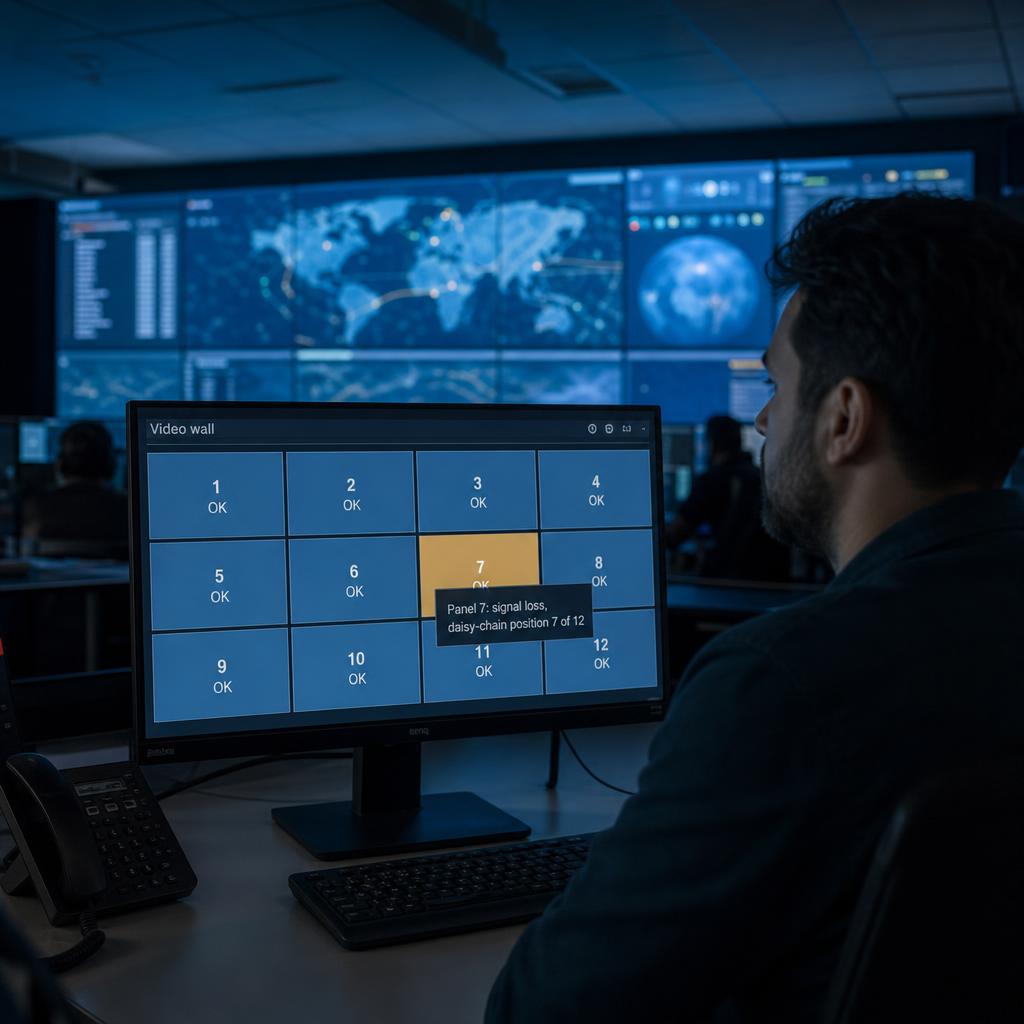
When a video wall has a fault, the first question is never "is the wall broken" — it's "which panel, and why." A blank tile could be a dead receiver card, a loose data cable, a tripped power supply, or a signal handoff failure from the panel before it in the daisy chain.
Remote diagnostics narrow this down before anyone travels:
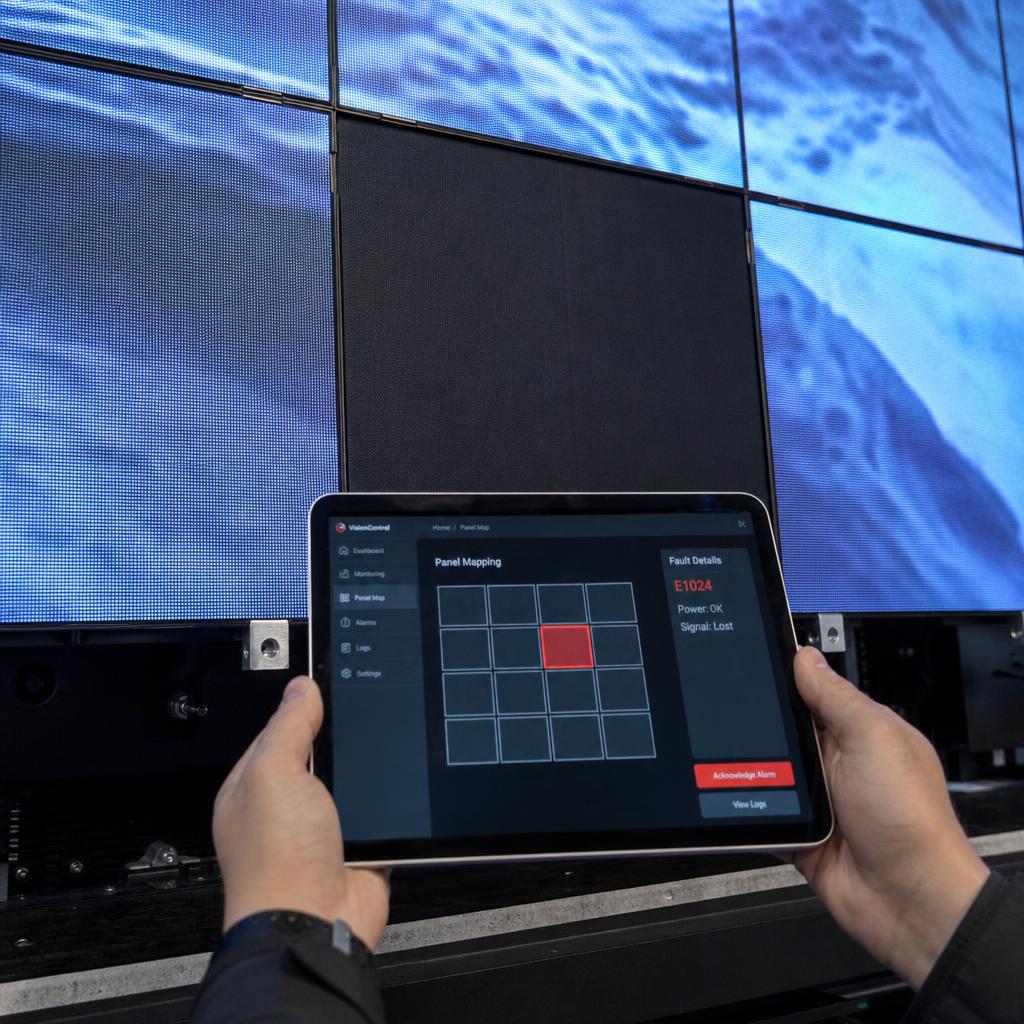
- Per-panel status grid — a visual map of the wall showing each panel's state overlaid on the physical layout
- Daisy-chain position — for LED walls where data passes panel to panel, knowing where the signal drops tells you whether the fault is at that panel or blocking every panel downstream
- Power vs signal fault separation — a panel with power but no signal is a different repair to a panel with no power at all
- Historical fault log per panel — a panel that's dropped out three times this month is a different priority to one failing for the first time
A technician arriving already knowing it's a specific panel with a specific fault type replaces a part in minutes instead of running a full diagnostic pass on a live wall.
Triggering Layout and Content Changes Across the Array
The other capability a single screen doesn't need is canvas orchestration — treating the array as one addressable surface and changing how content is mapped across it without touching any individual panel.
- Switching bezel compensation on or off — useful when swapping between full-bleed video and grid-style content
- Repartitioning the canvas — splitting a wall from one large image into independent zones for a multi-sponsor event, then merging it back afterwards
- Pushing a layout preset — recalling a saved configuration so an operator can switch layouts without manually rebuilding each time
- Remapping input-to-panel assignment — redirecting which physical panels display which source
The distinction from a standard remote content push is that these changes are canvas-aware — the software understands the wall's physical geometry and applies the change consistently across every panel in one action.
Setting Up Proactive Monitoring and Alerts for Wall Health
Reactive checking works for a single screen in a low-traffic location. It doesn't scale to a wall, because a single-panel fault is often invisible to anyone walking past while it may be highly visible to whoever's watching content on it during an event.
Proactive monitoring should be configured around:
- Per-panel alert thresholds — a single dark panel in a 20-panel wall won't trip a whole-wall alert, so alerting needs to be scoped per panel
- Brightness and colour drift flags — LED panels age and drift at different rates even within the same wall
- Power supply redundancy status — monitoring should flag when a wall is running on a single supply rather than waiting for a second failure
- Escalation routing by fault severity — a full panel failure during a live event needs a different response time to a single dead pixel found overnight
What You Can Fix Remotely vs What Still Needs a Site Visit
| Task | Remote | Site visit required |
|---|---|---|
| Checking per-panel sync and heartbeat status | Yes | No |
| Identifying which panel has failed and why | Yes | No |
| Pushing a layout or canvas change across the array | Yes | No |
| Rebooting a single unresponsive panel or processor | Usually | Sometimes, if power routing isn't remotely switched |
| Adjusting brightness or colour calibration | Yes, within range | Only if hardware sensors have failed |
| Replacing a dead receiver card or power supply | No | Yes |
| Swapping a physically damaged LED panel | No | Yes |
| Re-cabling a broken daisy chain connection | No | Yes |
Remote tools handle detection, diagnosis, and configuration fixes, and make every site visit shorter and more targeted.
Which Remote Management Approach Fits Your Wall
Small wall (2-6 panels) in a single location. Basic per-panel status visibility and remote layout switching is usually enough.
Large wall (12+ panels), or an LED wall used for live events. Proactive per-panel alerting and sync monitoring stop being optional. A desync during a live broadcast is visible to the audience before anyone reports it.
Multiple walls across multiple sites. The priority shifts to fleet-level dashboards with fault history logged per panel, per site.
Integrator or AV partner managing walls for clients. The requirement is diagnostic depth and a clean handoff — knowing exactly which panel, which fault and which part before dispatching anyone.
The common thread is that all four need the same thing: enough per-panel detail to answer "which one, and what is wrong with it" without standing in front of the wall.
If you are currently finding out about panel faults from whoever is standing nearest, book a demo and we will show the per-panel status grid and what an alert looks like when a single panel drops out of a twenty-panel array.
Video wall remote control FAQs
What's the difference between controlling a video wall remotely and controlling a single screen remotely?
A single screen is one device, so remote control covers power, reboot and content scheduling. A video wall is an array of panels that must stay in sync and share a coordinated layout, so remote control also needs per-panel sync status and layout orchestration across the whole canvas.
Can I tell which panel in a video wall has failed without physically inspecting it?
Generally yes, if the wall runs video wall monitoring software reporting status at the individual panel level — typically a visual map of the array with each panel's status and position in the daisy chain.
What causes a video wall to go out of sync, and can it be fixed remotely?
Desync is usually caused by a panel losing frame lock, a signal handoff issue, or a panel running at a different refresh rate. Some issues can be corrected remotely; a physical fault in the receiver card will still need a site visit.
How often should sync status be checked on a video wall?
Checking routinely, particularly before any event or period of heavy motion content, is worth doing since minor desync can be invisible on static images and only become obvious once video runs across the wall.
Can layout changes be pushed to a video wall without visiting the venue?
Yes, provided the wall is managed through software that understands the array as one canvas — repartitioning zones, switching bezel compensation, or recalling a saved layout preset remotely.
Does remote management reduce the number of site visits needed for a video wall?
It reduces call-outs for configuration or software issues and shortens the visits still needed, but doesn't remove site visits for genuine hardware failures like a dead receiver card.
Ready to Experience SPARC?
Join forward-thinking organizations already using SPARC for their digital signage needs.